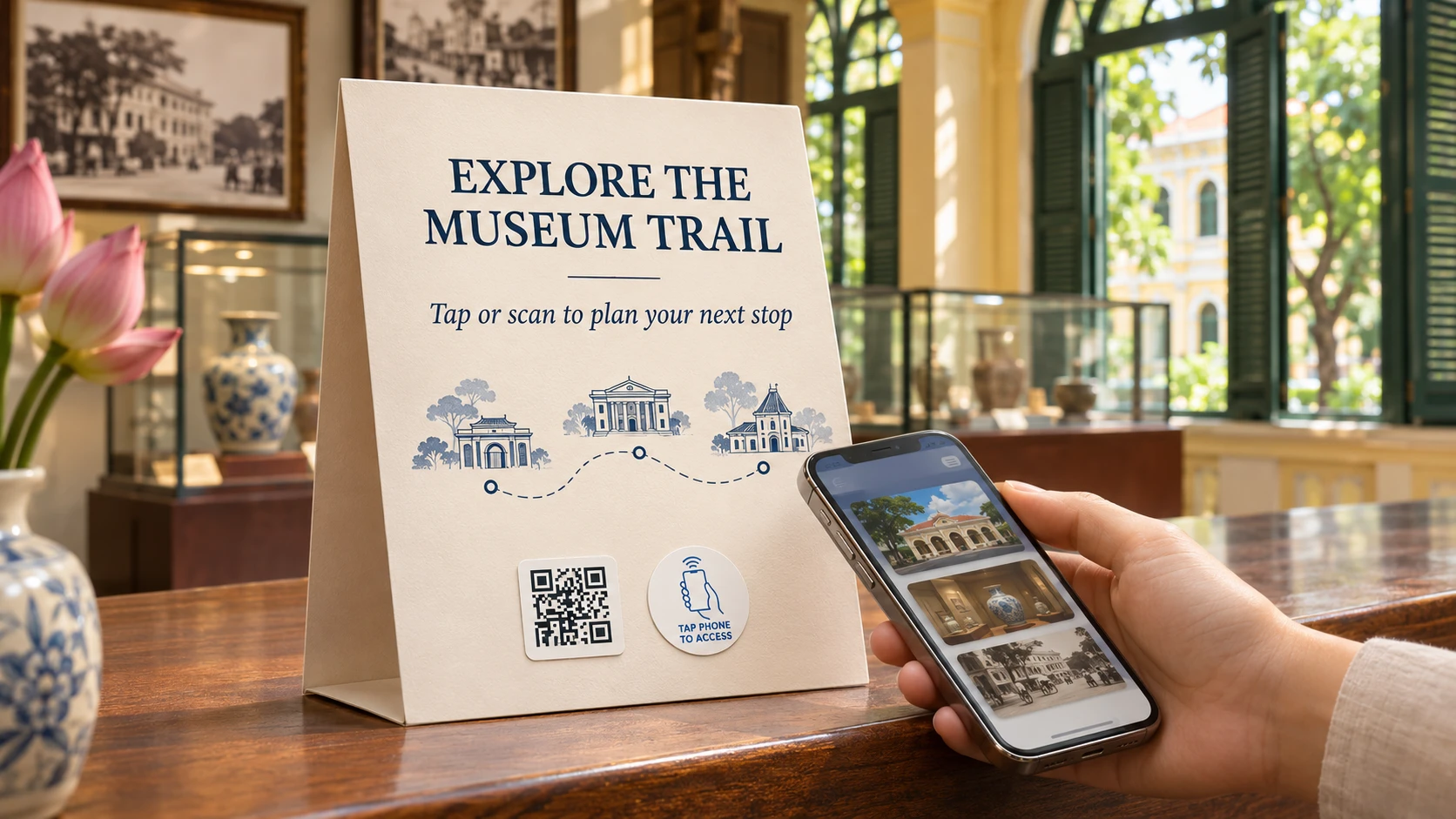
 NFC OPERATIONS
Android's official NFC documentation, last updated November 16, 2026, confirms an important change in how Android 17 handles website links stored on NFC tags. When a compatible smartphone reads an NFC tag containing a web address, Android 17 displays an "open link" notification that requires user interaction before the link opens.
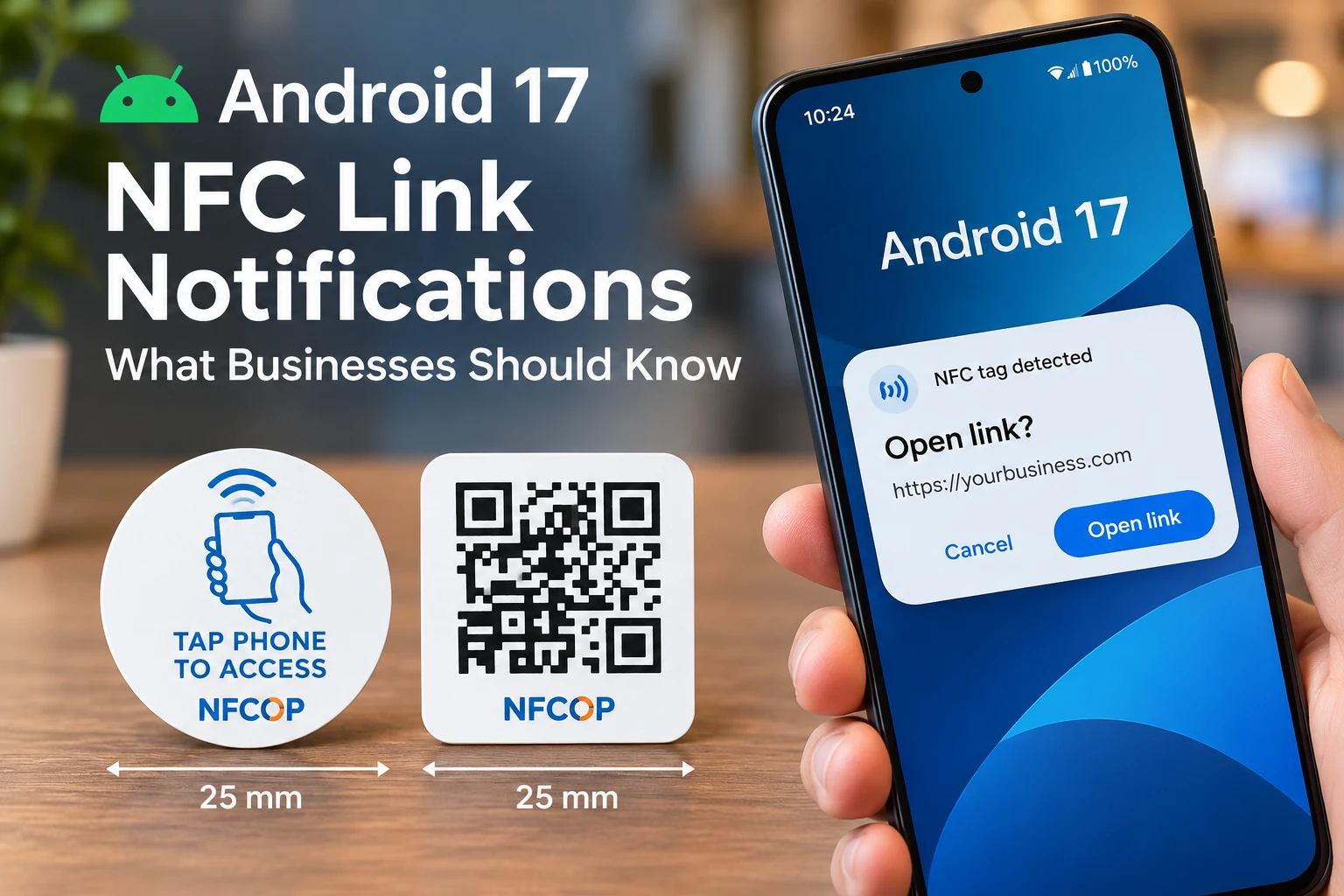
For businesses using NFC stickers on counters, product packaging, event displays, and printed marketing materials, this is a practical customer-experience update. NFC stickers can still connect customers to websites, but the steps customers follow may differ depending on their smartphone and operating-system version.
The main business implication is straightforward: clear tap instructions, a working destination URL, and an accessible QR Code alternative are important parts of a reliable NFC experience.
What Android's Updated NFC Guidance Confirms
According to the official Android NFC developer documentation, Android 16 changed how the system handles NFC tags containing HTTP or HTTPS website links. Instead of using the earlier NFC-specific application-discovery process, Android uses its standard mechanism for opening web addresses.
Android 17 adds an explicit confirmation step. When a supported phone reads this type of NFC tag, the system shows an "open link" notification. The user must interact with the notification to continue to the destination.
This does not mean NFC URL stickers have stopped working. The technology still allows a compatible smartphone to read a web address from a physical NFC tag. What changes is how the operating system presents the next action to the user.
The documentation describes Android behavior, not a universal rule for every smartphone. Device settings, NFC compatibility, software versions, and application handling can affect the experience. Businesses should therefore avoid assuming that every customer will see an identical screen after tapping a sticker.
Why the Android 17 Change Matters for Businesses
NFC marketing depends on customers understanding what to do at a physical touchpoint. A sticker may direct someone to a digital menu, product guide, promotional offer, review page, or registration form. If the next action is unclear, the visitor may not complete the intended interaction.
Android 17 makes the link-opening prompt an explicit part of the experience. This means printed instructions should explain the action clearly rather than suggesting that every NFC tap automatically opens a webpage.
Businesses should also distinguish the NFC interaction from the destination itself. An NFC sticker provides access to a URL. The linked website handles any subsequent actions, such as submitting a form, making a reservation, signing up for an offer, or leaving a review.
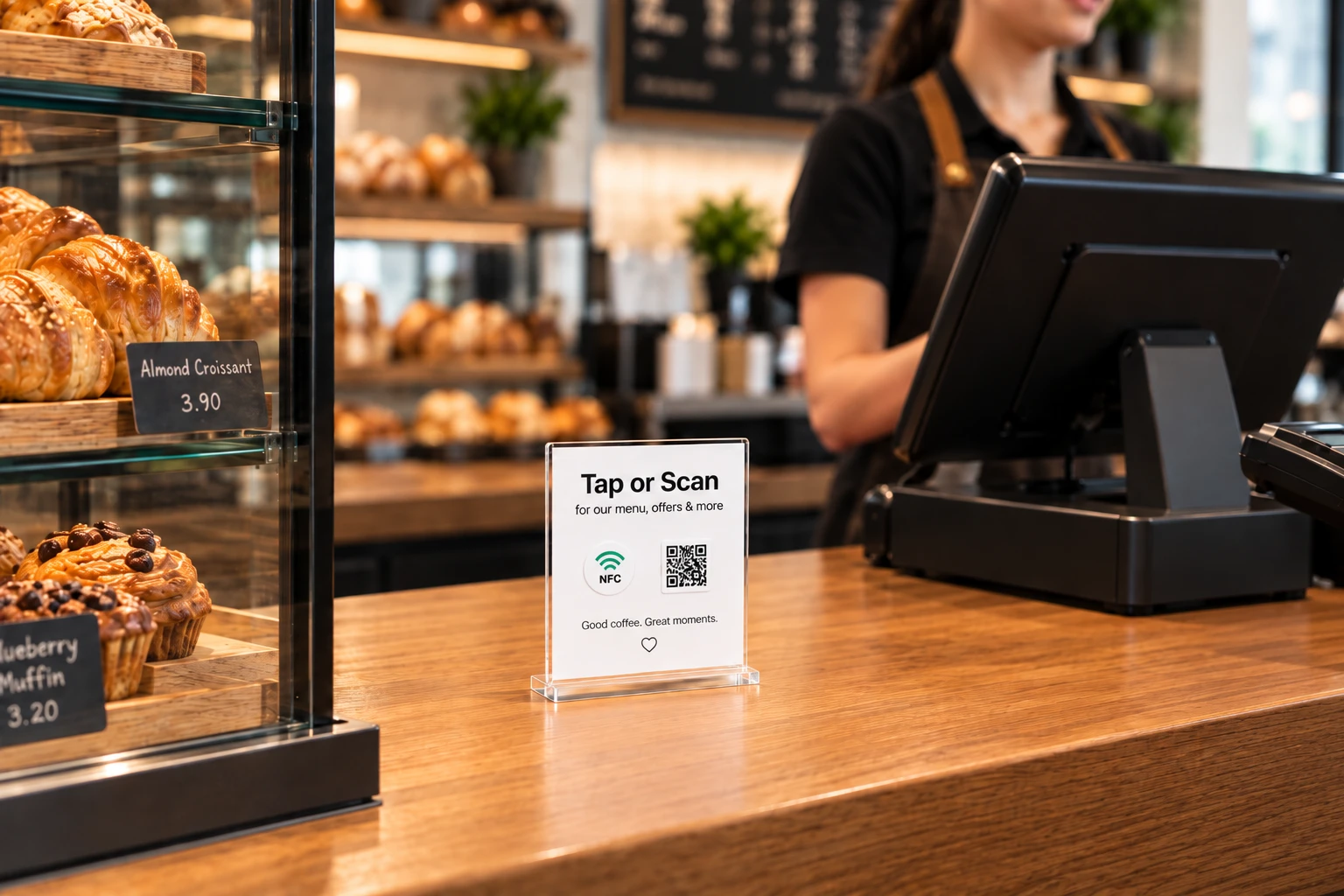
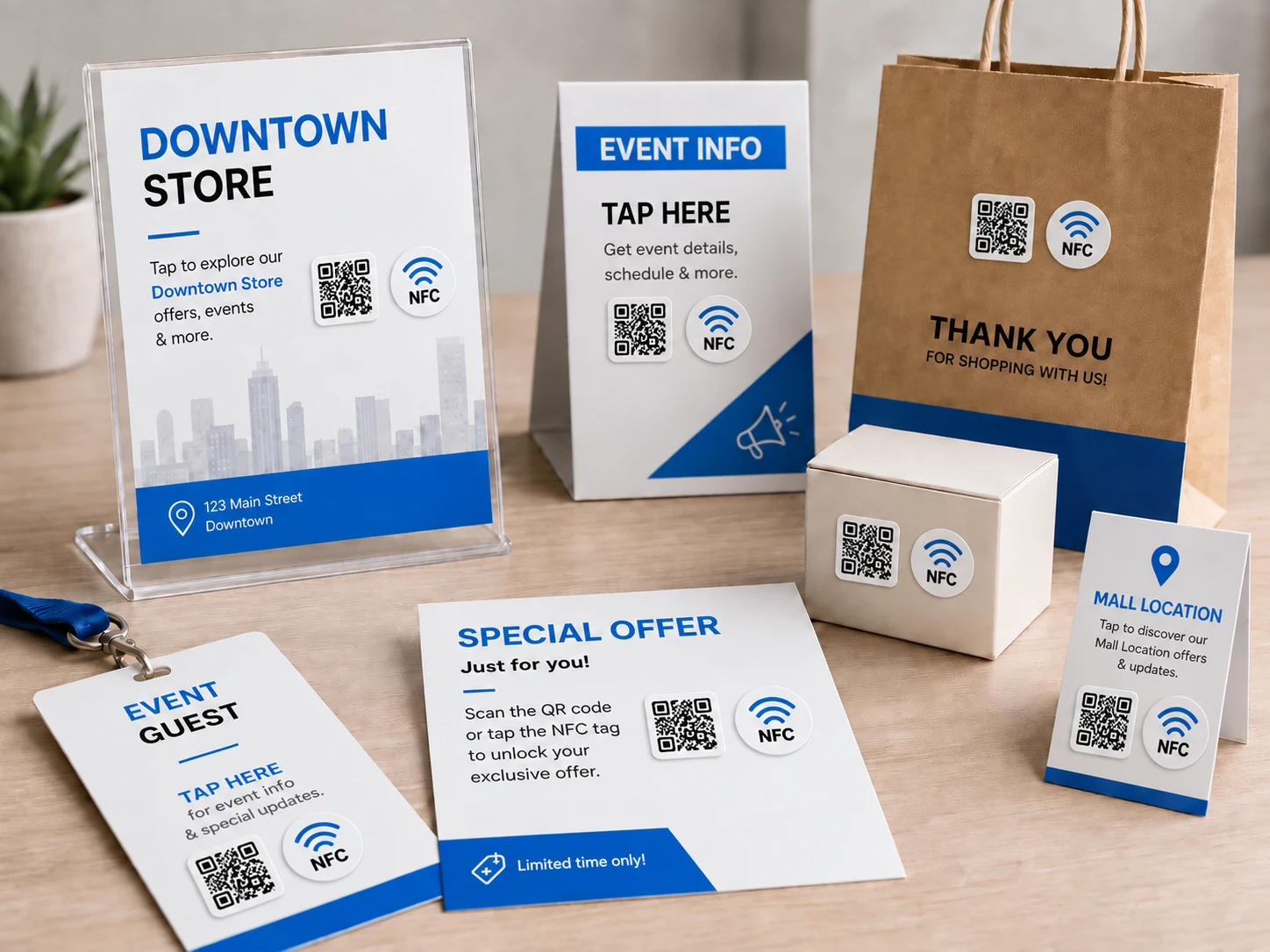
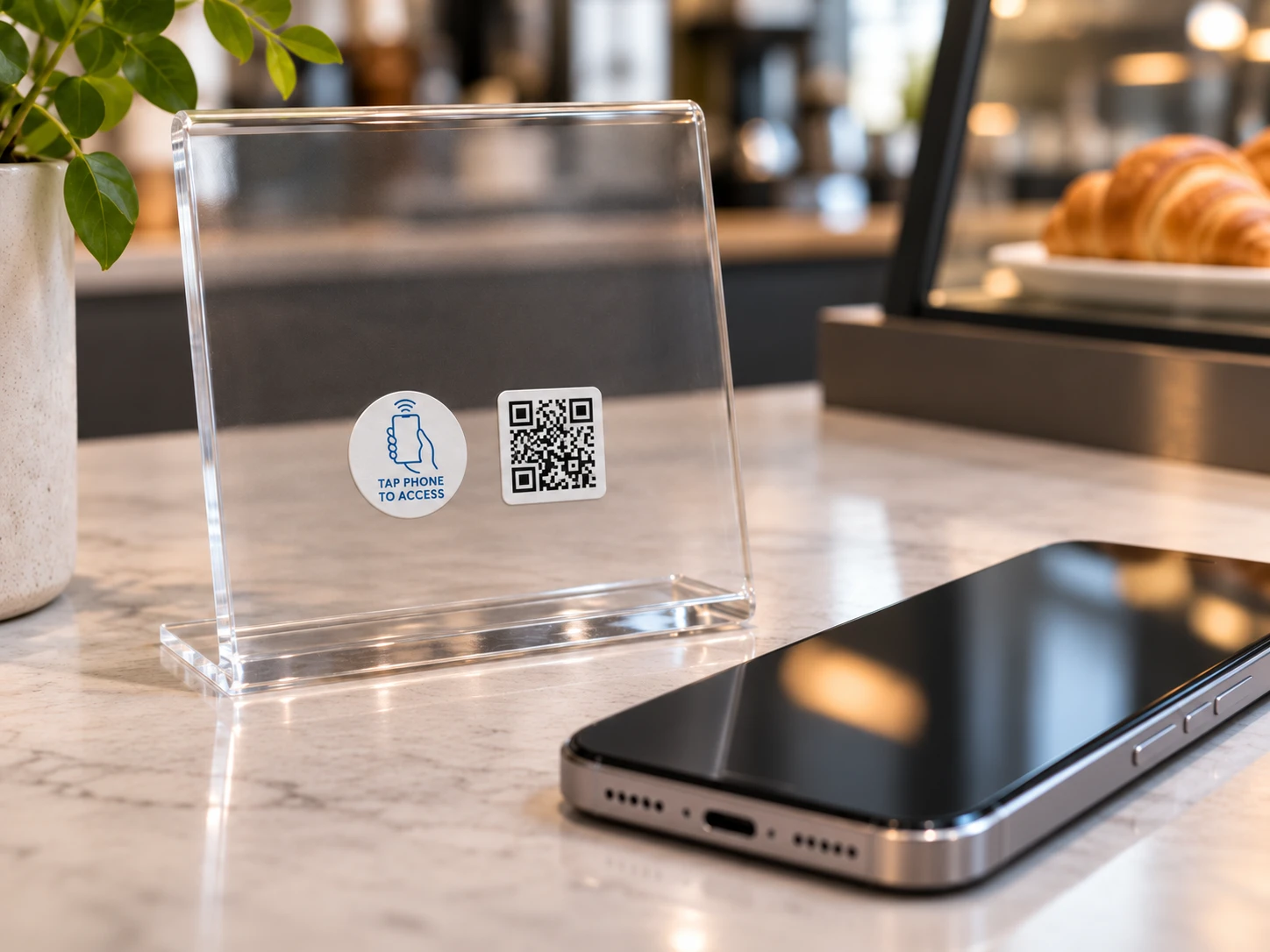
A customer-facing sign that presents both NFC and QR Code access gives visitors two ways to reach the same information. This is particularly useful when customers have different phone models, accessibility needs, or preferences for opening links.
NFCOP's existing article on NFC versus QR Codes for business explains why these technologies are complementary rather than interchangeable.
Where Businesses Should Review Their NFC Touchpoints
The Android 17 guidance is relevant wherever an NFC sticker is used as a shortcut to a standard website. Businesses do not need a specialized application to offer ordinary URL-based NFC access on most compatible modern smartphones.
Several existing business applications illustrate where clear instructions and a matching QR Code are useful:
- Retail checkout counters: Place an NFC and QR Code sticker near a customer information display. Link it to an existing loyalty registration page, promotional offer, or Google review URL.
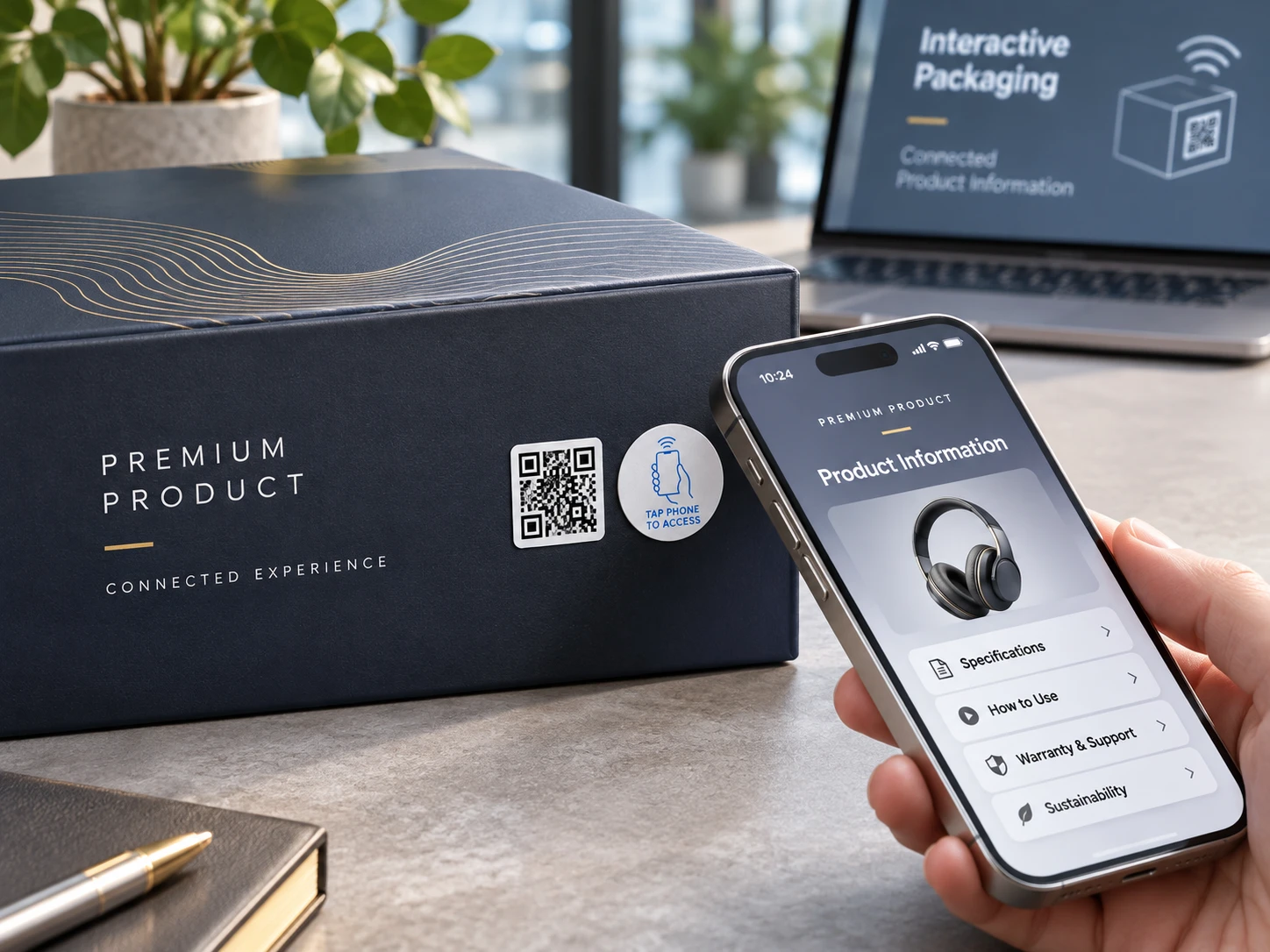
- Product packaging: Add a printed touchpoint to a product box or insert. Direct customers to a specific setup guide, care instructions, or warranty registration webpage.
- Events and conferences: Put NFC and QR Code stickers on information boards, schedules, or booth displays. Link visitors to the current agenda, event resources, or a registration form.
- Hotels and guest services: Place stickers on suitable guest-room information cards or reception displays. Open a digital guest guide, hotel directory, or existing service information page.
In each case, the physical sticker provides an access point, while the destination website supplies the actual information or service. These are practical placement examples, not measured outcomes from an Android 17 deployment study.
How to Make NFC and QR Code Instructions Clearer
Businesses should review the wording displayed beside their NFC stickers. The best instructions identify the destination and explain that the visitor may need to follow a phone prompt.
For example, a sign could say "Tap NFC or Scan QR to Open Our Menu." A smaller supporting instruction could add "Follow your phone's prompt to open the link." This wording works across different phone experiences without promising that the webpage will open automatically.
The linked page should match the printed instruction. A sticker labeled "View Product Instructions" should open the relevant instructions rather than an unrelated company homepage.
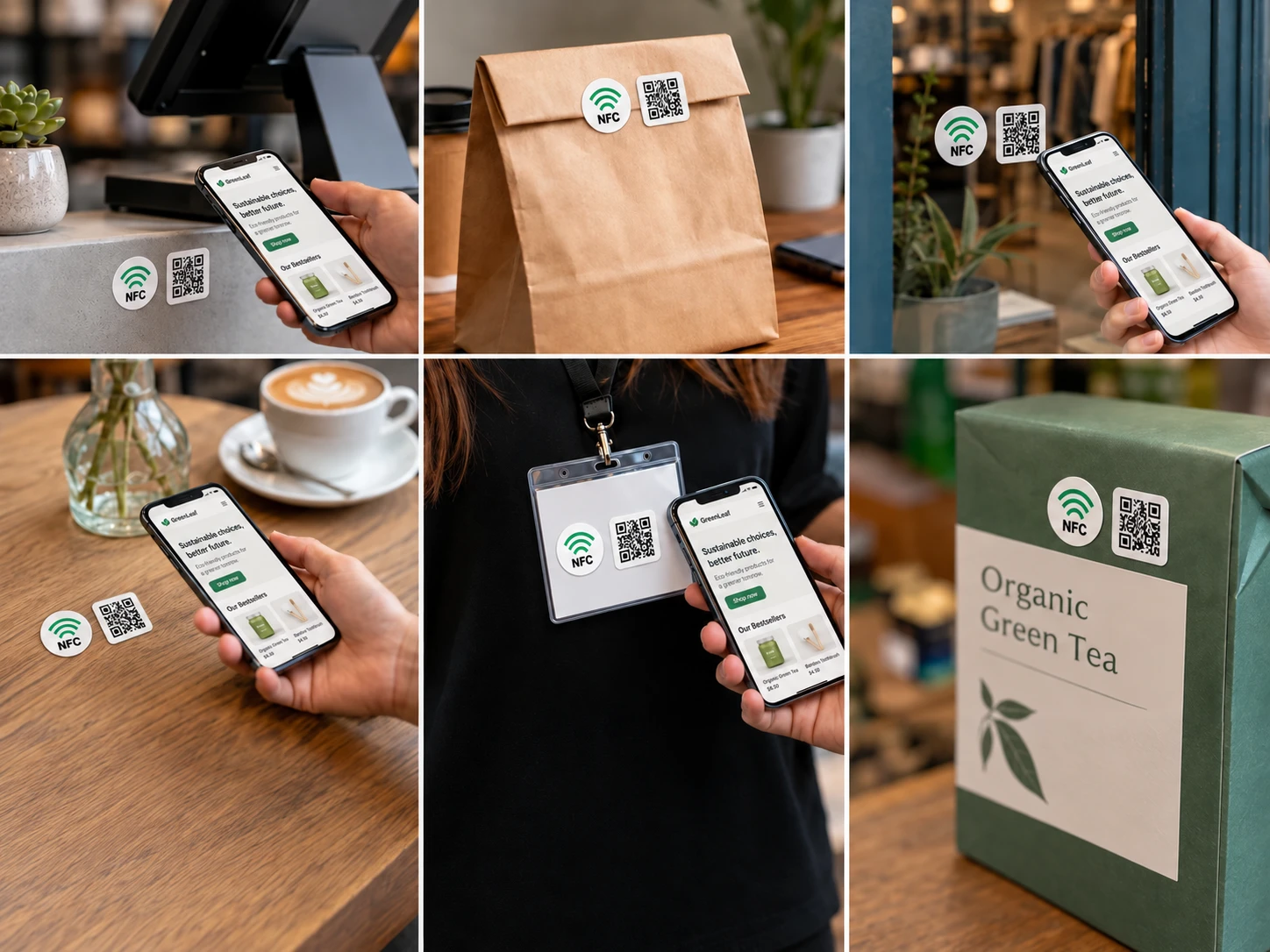
Visible placement also matters. NFC stickers need to be close enough for compatible phones to read them, while QR Codes need sufficient size, contrast, and lighting for camera scanning. Businesses should test the stickers after mounting them, especially on surfaces that may interfere with NFC reading.
For background information about how a website address is stored on a tag, see NFCOP's guide to NFC stickers that open a URL.
Five Checks Before Using NFC Stickers in a Campaign
The Android 17 documentation provides a useful reason to review the full customer interaction before printing or deploying additional NFC materials. Businesses can use the following checklist for ordinary website-link stickers.
- Test current Android phones: Check how the NFC website-link notification appears and whether customers can easily recognize the action needed to open it.
- Compare different devices: Test Android versions and supported iPhones where possible. Do not assume that all smartphones present the same interface.
- Verify the QR Code alternative: Confirm that the printed QR Code scans correctly and reaches the intended destination.
- Check the final placement: Test the NFC sticker after installation and confirm that its location, material, and mounting surface do not prevent reliable reading.
- Review the destination webpage: Make sure the website loads on mobile devices, provides current information, and clearly displays the intended next action.
Testing should include the entire process, from finding the sticker to opening the destination webpage. A successful NFC read does not establish that a customer has completed a purchase, booking, registration, or other action.
How NFCOP Supports Tap-and-Scan Website Access
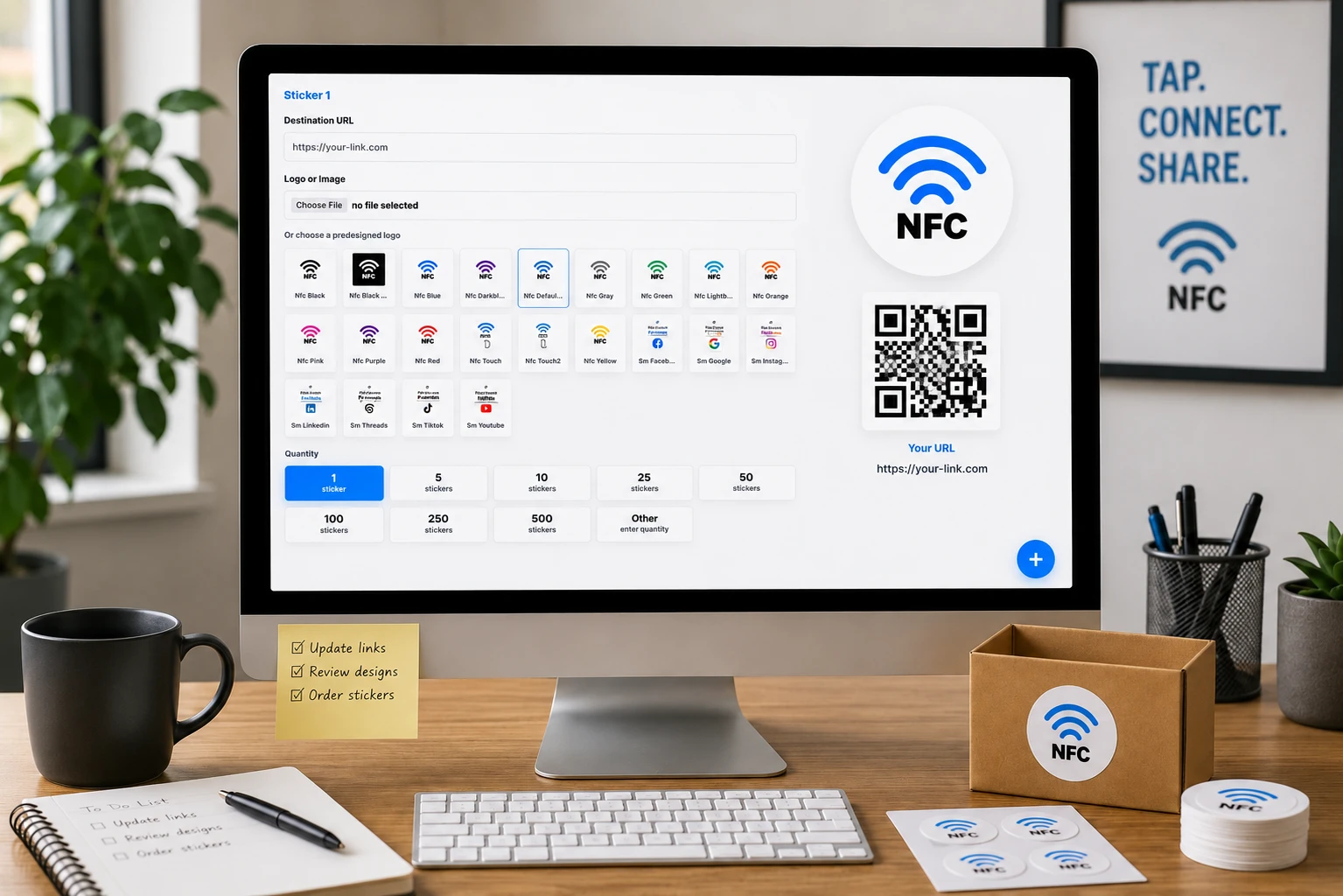
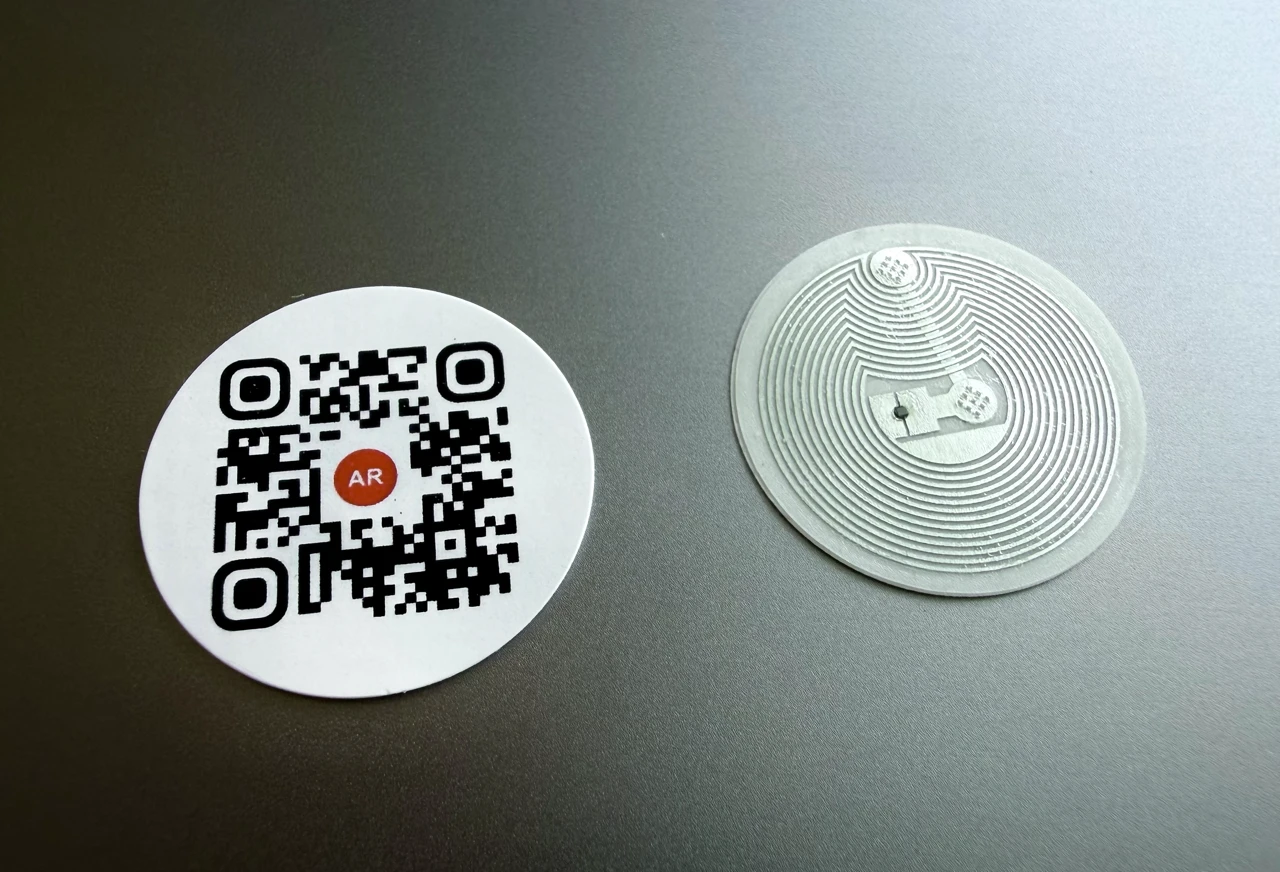
NFCOP provides custom printed NFC URL stickers with matching QR Code stickers. Customers select their destination URL, upload their preferred design, and choose the required quantity. NFCOP handles the printing, NFC encoding, and QR Code preparation before delivery.
Both stickers open the selected web destination. Customers can use the NFC option with a compatible phone or scan the matching QR Code. The service provides an accessible route to existing online content without requiring the business to encode NFC tags manually.
NFCOP also offers optional Dynamic URLs. These allow businesses to change the final destination after printing and review supported link-usage statistics. However, Dynamic URLs do not bypass Android's operating-system notifications, and link visits should not be confused with completed customer actions.
Businesses can review NFCOP's compatibility and Dynamic URL information before choosing a destination and preparing their stickers.
What the Android 17 Update Means Going Forward
Android's updated guidance reinforces an important consideration for NFC marketing: the smartphone interface is part of the customer experience. Businesses cannot control every operating-system interaction, but they can provide clear instructions, relevant content, and a familiar alternative for accessing the same link.
The Android 17 notification requirement is not evidence that NFC marketing is declining or that existing NFC stickers need to be replaced. It is a documented behavior that businesses should consider when testing URL-based tap experiences.
For teams preparing new signage, packaging, or customer information points, a practical approach is to offer NFC and QR Code access together, test both methods, and keep the linked webpage useful and current.
To prepare a branded tap-and-scan touchpoint, explore how NFCOP prints, encodes, and delivers ready-to-use NFC and QR Code stickers.